Riverside Help Center Help Center home page
Go to Riverside
  1. Riverside Help Center
  2. Hosting, sharing, and publishing
  3. Download and share your content

Hosting: Edit podcast settings

« to Hosting: Overview

Edit your podcast settings to correct mistakes, improve discoverability, or reflect content changes, and any updates you make will be reflected on listening platforms.

Who: Account owner, admins, directors, and editors
Plan: Pro, Live, Webinar, and Business
Device: Computer browser
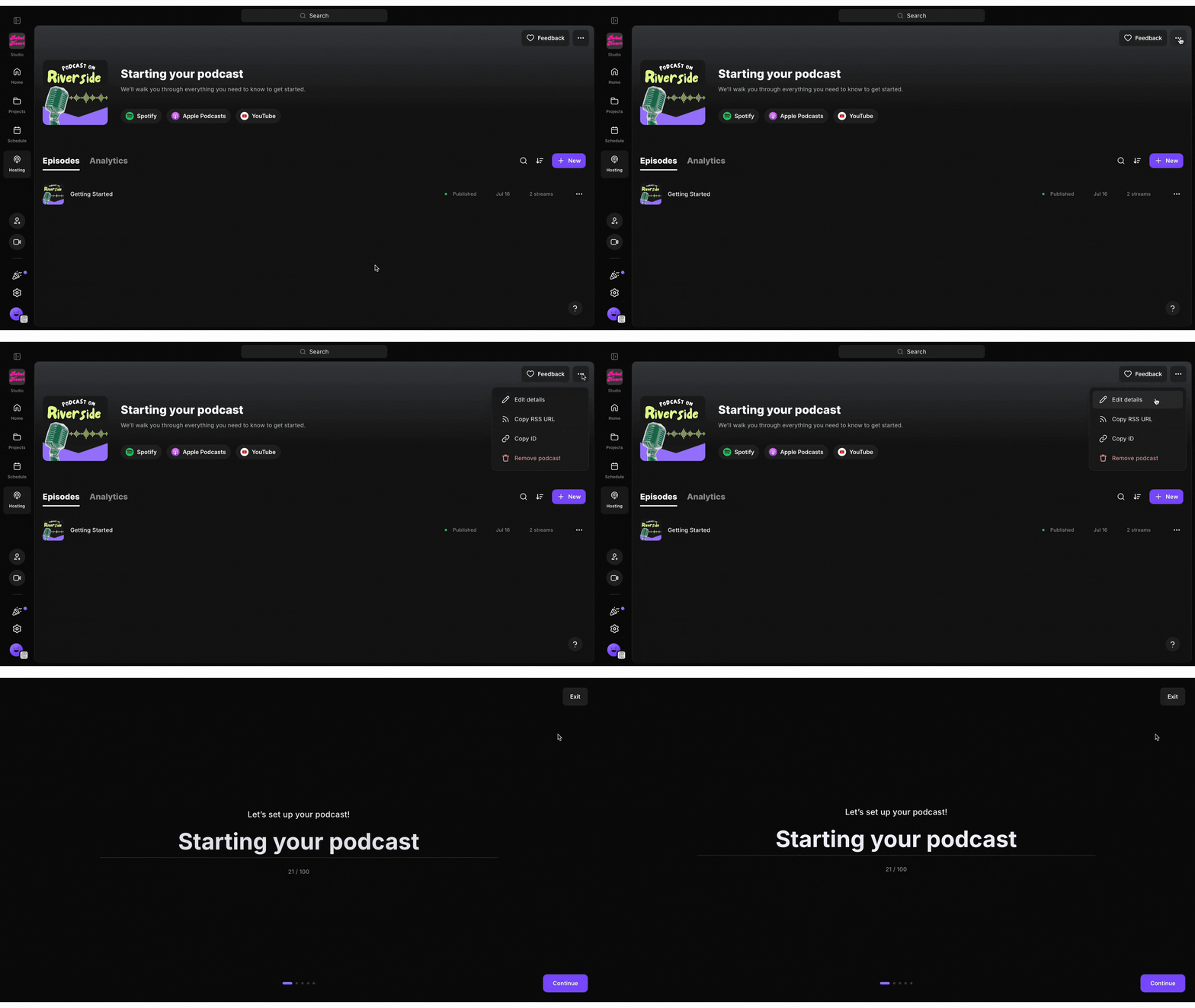
Edit podcast details.gif Step by step

  1. Log in to your Riverside account.
  2. Navigate to the relevant studio.
  3. From the sidebar on the left, click Hosting.
  1. In the top right corner of the screen, click ••• [the three dots].

  2. Click Edit details.
  3. Update the podcast's settings, then click Save.

Learn more

  • Podcast cover art requirements
  • Managing explicit content

Related articles

  • Hosting: Edit episode details
  • Hosting: Remove podcast
  • Hosting: Unpublish episode
  • Disconnect Riverside from social login (SSO for Google, Apple, Spotify)
  • Cancel your account subscription plan

Articles in this section

  • Download recording tracks: Overview
  • Export options: Overview
  • Video and audio file formats: Overview
  • About cloud recording files
  • About download hours
  • About edits and clips
  • About high-quality tracks
  • Add music attribution when publishing to YouTube
  • Audio quality during export
  • Change playback speed of an exported recording

See all articles

Deutsch Español Français Português