When you publish a video episode, the video won't automatically appear on Spotify. By default, only the audio will be published. Follow these steps to manually add your video on Spotify for Creators.
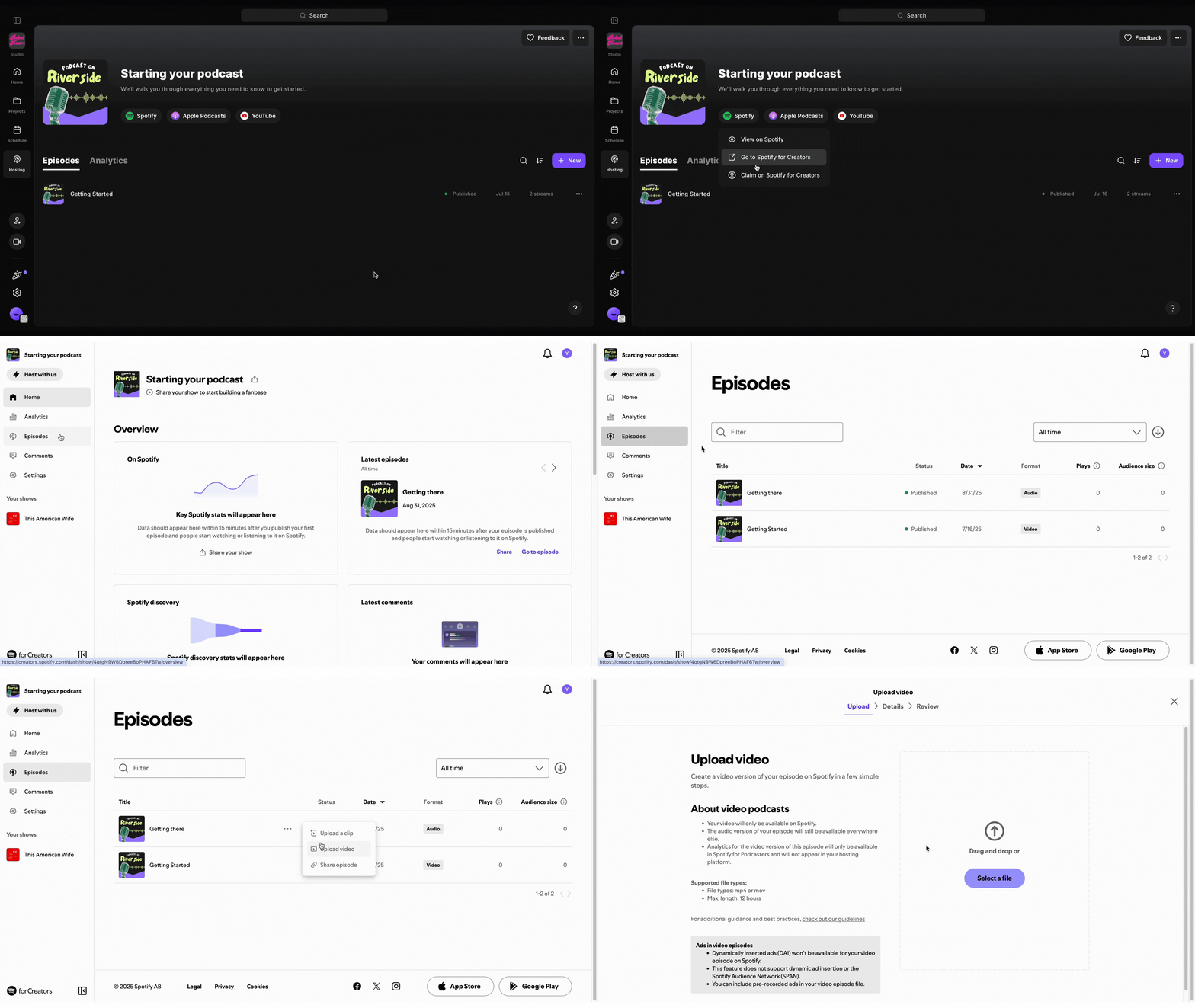 Step by step
To add a video to an existing episode on Spotify, first claim your podcast on Spotify, then upload and publish your episode.
- Log in to your Riverside account.
- Navigate to the relevant studio.
- From the sidebar on the left, click Hosting.
- At the top of the screen, click Spotify.
- Select Go to Spotify for Creators.
You are redirected to your Spotify for Creators dashboard.
- From the left sidebar, click Episodes.
- Hover over the relevant episode and click ••• [the three dots].
- Select Upload video.
- Click Select a file, then upload the video file from your device.
- Under Episode Details, update the relevant fields and select a thumbnail image for your video.
-
Click Next, then click Publish.
 Good to know
-
Your video must include an audio track.
-
The accepted file formats are .mp4 or .mov.