« To Riverside for Business features: Overview
Riverside for Business users can create multiple studios within productions to better organize content and scheduling.
Who: Account owner
Plan: Depending on your account's plan, there may be a limit to the number of studios you can create
Device: Computer browser and mobile app
 Step by step
Follow the steps below based on if you're using a computer or your mobile device.
-
Create a new studio using a computer
-
On a computer,
log into your Riverside account.
- In the top left corner, click the current studio.
- Hover over the production where you want to add a studio.
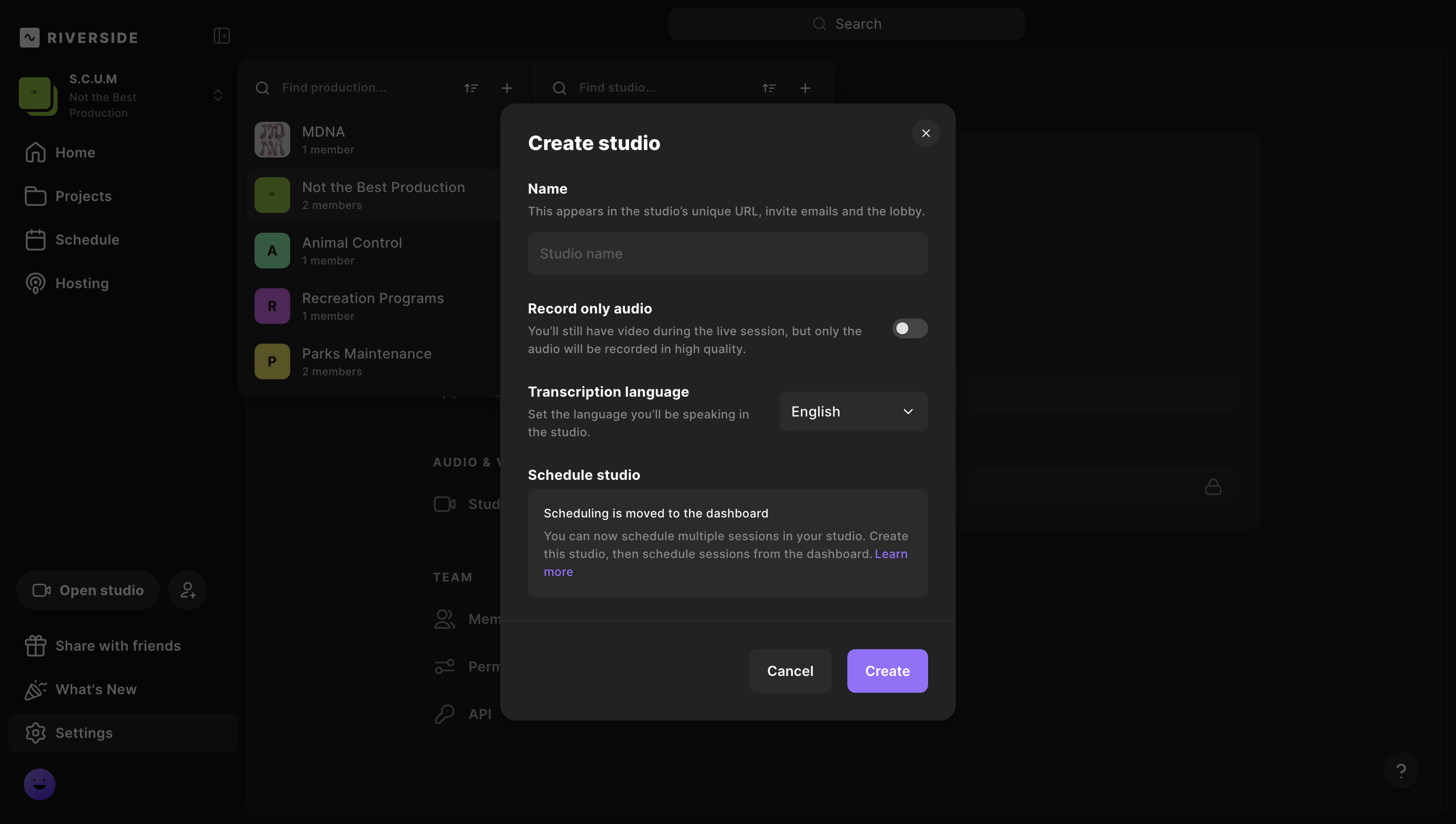
Studios within the selected production are displayed in the studio panel. - In the top right corner of the studio panel, click the + plus icon.
The Create studio panel opens. - Under Name, type the studio name.
-
Next to Record only audio, click the
toggle to record audio only.
When the toggle is on, the studio records audio only. - Next to Transcription language, select a default language from the dropdown.
- Click Create.
-
-
Create a new studio using your phone
- Download and launch the Riverside mobile app.
- On the Studios screen, tap + Create new studio.
- Type in the Studio name.
- Select a default language for transcriptions.
- Choose whether the studio records Audio & Video or Audio only.
- In the top right corner, tap Create.