Each recording you create on Riverside has a unique, 32-digit identifying number called the recording ID. Riverside's Support team can use it to check the technical details of your recording session.
 Step by step
Follow the steps below based on if you're using a computer or your mobile device.
-
Find the recording ID using a computer
- Log in to your Riverside account.
- Navigate to the relevant studio.
- Select the relevant project.
- From the top menu, click Recordings.
- Scroll down to the relevant recording.
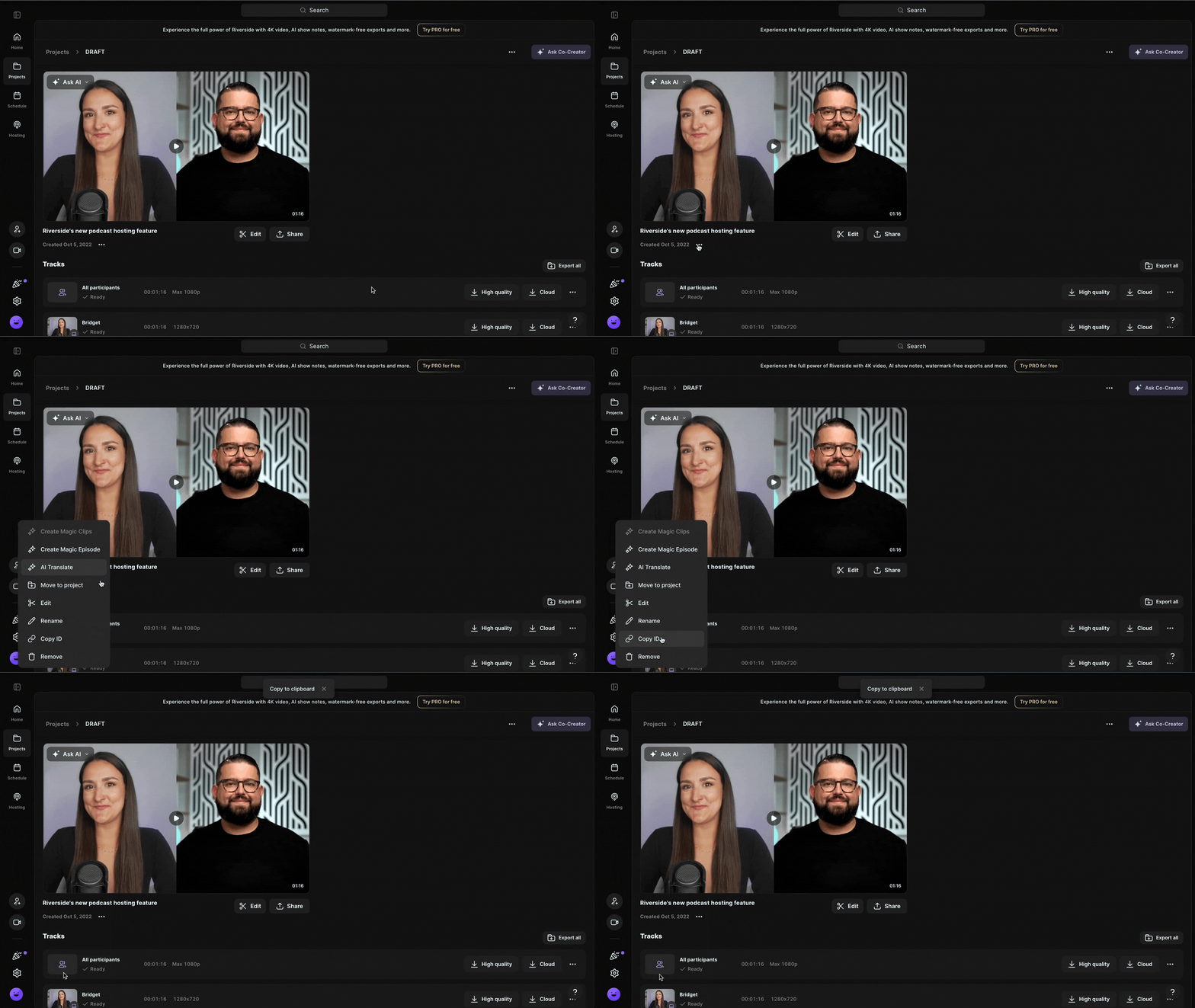
- Under the recording preview, click the three dots menu […].
- Click Copy ID.
The recording ID is copied to your clipboard.
-
Find the recording ID using your phone
- Open a recording from the Riverside mobile app.
- In the center of the screen, tap ••• [the three dots].
-
Tap Copy recording ID.
The recording ID is copied to your clipboard.