« To Riverside for Business features: Overview
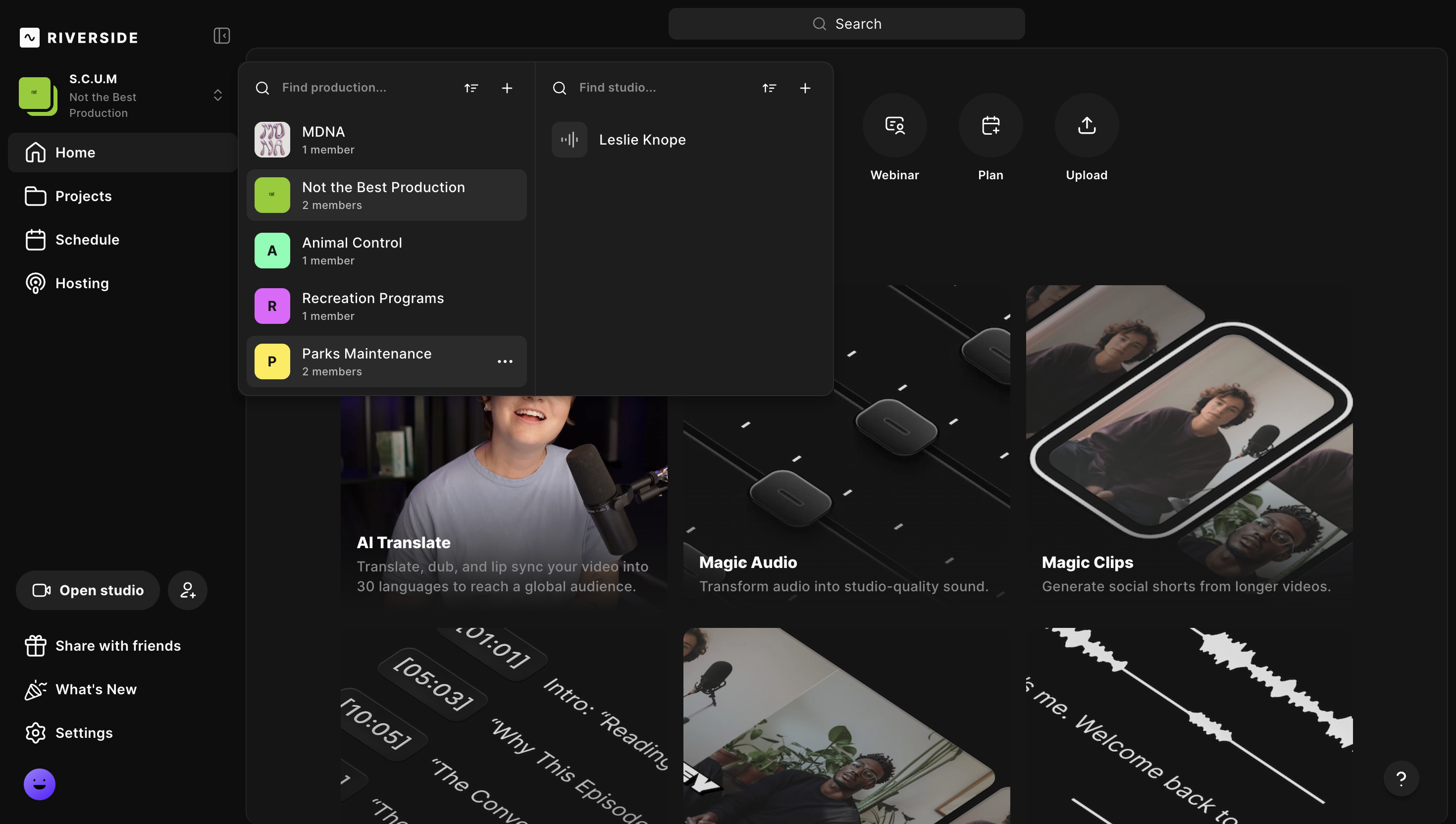
Users in a Riverside for Business account can organize their studios under different productions. If you have access to multiple productions, follow the steps below to switch between them.
Who: Account owner and admins
Plan: Business
Device: Computer browser, mobile and MacOS desktop app
Step by step
-
Open a different production using the browser
- Log in to your Riverside account.
- In the bottom left corner, click the account menu button.
- Click Settings.
- Under Team, click Productions.
This opens a searchable, account-level list of every production.
Each row shows the production's name, member count, and last activity date.
-
Open a different production using your phone
- Download and launch the Riverside mobile app.
- In the top left corner, tap the Account icon and log in.
- At the top of the screen, tap the current production.
or tap My Productions (on iPad). - Tap the desired Production to open it.
-
Open a different production using the MacOS app
- Download and launch the Riverside MacOS desktop app.
- Log in to your Riverside account.
- At the top left corner, click the current studio.
- In the panel, click the current production.
- Under All productions, click the desired production to open it.