Listed below are common cameras that are compatible with Riverside. Expand each dropdown to view equipment details, recommendations, and troubleshooting suggestions.
Highly recommended cameras are noted with an asterisk (*) and Recommended label.
Supported cameras
-
Canon DSLRs
You can connect many mirrorless, compact, or DSLR cameras manufactured by Canon to your computer by using:
- a USB cable and Canon's EOS Webcam Utility software, or
- an HDMI cable connected with a video capture card.
Max video resolution Maximum depends on the camera model and connection type
- Via USB and EOS Webcam Utility:
- 1080p (digital upscale)
- Confirm compatibility on Canon.com
- Via HDMI capture card:
- Up to 4K
- Confirm for an Elgato Cam Link, for example
Manufacturer details Canon.com: EOS Webcam Utility General recommendations - Set the camera's frame rate to match the Studio's set frame rate.
- Ask the Host or Producer to check the Studio's settings if you are unsure of its current frame rate.
- Connect the camera to an external power source, rather than using its battery, if possible.
If using EOS Webcam Utility - Reduce the framerate of the preview:
Settings > Video > Preview Framerate
- Prioritize frame rate over picture quality:
- For best results, do not connect the camera wirelessly.
If using an HDMI capture card - Check your Canon camera's compatibility details at the capture card manufacturer's website, like on Elgato.com.
- Turn off the camera's informational overlays, such as the focus box, resolution, etc. (called a 'Clean HDMI Feed') so it is not present on your recorded video.
- Disable any power-saving settings that automatically turn the camera off after a period of non-use.
- Confirm that you have selected the capture card as your video input in Riverside (like "Cam Link 4K"), rather than "EOS Utility" or the name of the camera model.
Limitations Canon's EOS Webcam Utility is free software but has a number of paid features that require a subscription, including:
- 1080p resolution (digital upscale)
- Note: Not every Canon camera can output more than 720p over a USB connection.
- control camera's settings via Utility software
- hotkeys
Troubleshooting I don’t see my camera in the menu of the Lobby or Studio -
Insta360 Link
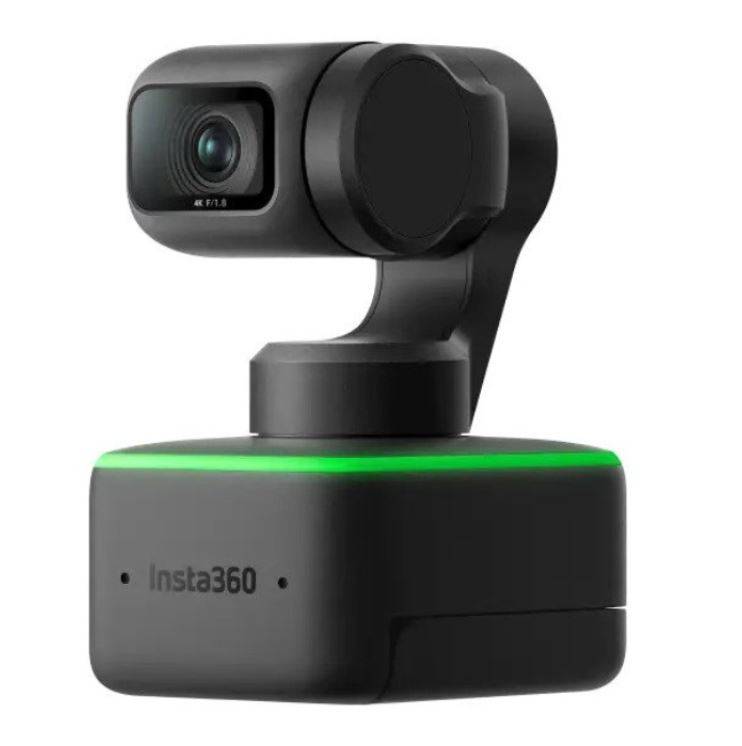
Max video resolution 1080p Connection type USB-C or USB-A Manufacturer details Full specs at insta360.com Recommendations - Turn off the AI processing features before recording. These features can strain the processor and introduce latency and dropped frames in the local track. Follow the video guide from Insta360.
- 'Streamer Mode' is the term the Link Controller software uses for vertical video. It can be enabled under More Settings, but Riverside users should generally leave it turned off. The highest resolution in Streamer Mode is 1080p.
Troubleshooting - Insta360.com troubleshooting
- Plug the InstaLink directly into a computer, not through other cables or hubs.
-
iPhone with Continuity Camera
Max video resolution 1080p Manufacturer details Continuity Camera: Use iPhone as a webcam for Mac (Apple.com) Requirements - iPhone XR or newer (all models after 2018)
- Running iOS 16 or later
- A Mac compatible with macOS 13 Ventura or later
- Both devices must be signed into the same Apple ID and also have Bluetooth and Wi-Fi turned on.
Recommendations - Follow our detailed setup instructions.
- Connect the iPhone to your Mac with a lightning cable, rather than wirelessly.
- If no participant is using a camera that can record 4K video, change the Studio's maximum resolution to Advanced Quality: Up to 1080p
Troubleshooting - Be sure to unlock the iPhone's screen orientation: swipe down from the top of the screen to open the Control Center, then tap the
rotation lock icon.
- Be sure to turn off the iPhone's display: push the iPhone's side button.
- Restart your iPhone and Mac.
- Use Quicktime to check that the iPhone is connected correctly and record a short test video.
- Refresh the page in your browser.
- Completely quit and reopen your browser.
- Use Riverside from a different web browser.
- For example, if you are using Chrome, try using Edge to join the Studio.
- Confirm that Riverside has permission to access your mic and camera in your browser.
- Sign out of your Apple ID, and then sign in again on both your iPhone and Mac.
- iPhone XR or newer (all models after 2018)
-
Logitech Brio (Logitech 4K Pro)
Max video resolution 1080p (see Limitations section below for details) Connection type USB-C (camera) to USB-A (computer) Manufacturer details Full specs at logi.com Recommendations - Run Logi Tune on your computer while recording for best results.
- You can also use Logi Tune to turn off the camera's auto-exposure and maximize your computer's processing power.
- We recommend connecting an external mic to your computer, rather than the Logitech Brio's built-in microphone.
Limitations Riverside records video from the Logitech Brio at up to 1080p resolution to ensure a smooth frame rate. This only affects the Studio participant using the Logitech Brio. Troubleshooting - Run Logi Tune on your computer while recording for best results.
-
Recommended
Logitech Streamcam
Max video resolution 1080p Connection type USB-C (to computer) Manufacturer details Full specs at logitech.com Recommendations - Run Logi Tune on your computer while recording for best results.
- You can also use Logi Tune to turn off the camera's auto-exposure and maximize your computer's processing power.
- Although this Logitech series includes a built-in microphone, we recommend using a different external mic, if available.
- The Streamcam has a USB 3.1 Gen 1 Type-C cable that cannot be disconnected from it. For best results, Logitech recommends plugging this into the computer without any extenders, hubs, or additional connections.
Troubleshooting - Run Logi Tune on your computer while recording for best results.
-
Recommended
Opal C1
Maximum Video Resolution 2160p 4K Connection type USB-C to USB-C Manufacturer details Full specs at Opalcamera.com Recommendations - If recording on Riverside at 4K resolution, automatic features of the Opal app may add strain to your computer's processor and cause framerate issues.
- Turn off some of these features by enabling its Low Power Mode in the Opal app under Settings > Performance > Low power mode.
- Otherwise, each feature can be turned off under Camera, Effects, Manual, or Settings, such as: gesture control, brightness, exposure, saturation, etc.
- Connect an external mic to your computer rather than the Opal's built-in microphone.
Limitations - The Opal camera requires a Mac.
- Users should download and install the Opal app. Without using Opal's app, the camera connects as a standalone 'UVC' webcam.
Troubleshooting - If you need to change the camera's resolution, open the Opal app, click Settings, and scroll to Appearance.
- If recording on Riverside at 4K resolution, automatic features of the Opal app may add strain to your computer's processor and cause framerate issues.
-
Sony Cameras and Camcorders
You can connect many compact or DSLR cameras or camcorders manufactured by Sony to your computer by using:
- a USB cable and Sony's Imaging Edge Webcam software, or
- an HDMI cable connected with a video capture card.
Max video resolution - Via Sony Imaging Edge (USB):
- 1024 × 576 (720p in Riverside)
- Via HDMI capture card:
- Depends on the camera model
- Find your camera details here
Manufacturer details Sony.co: Imaging Edge Webcam General recommendations - Set the camera's frame rate to match the Studio's set frame rate.
- Ask the Host or Producer to check the Studio's settings if you are unsure of its current frame rate.
- Connect the camera to an external power source, rather than using its battery.
- If your camera has the option for USB Power Supply, turn it On. Otherwise, make sure the camera is fully charged before you record.
If using Sony Imaging Edge Webcam The exact steps depend on your camera model. See full, detailed instructions at Sony.com.
- In the camera's settings, enable its 'PC Remote' function.
- Connect the camera to your computer via USB cable, then set the camera to AUTO mode.
- Open Riverside in your browser.
- Set the camera to Movie mode.
- Select Sony Imaging Edge as the video input in Riverside.
- For best results, do not connect the camera wirelessly.
If using an HDMI capture card - Check your Sony camera's compatibility details at the capture card manufacturer's website, like on Elgato.com.
- Turn off the camera's informational overlays, such as the focus box, resolution, etc. (called a 'Clean HDMI Feed') so it is not present on your recorded video.
- Disable any power-saving settings that automatically turn the camera off after a period of non-use.
- Confirm that you have selected the capture card as your video input in Riverside (like "Cam Link 4K"), rather than "Sony Imaging Edge" or the name of the camera model.
Troubleshooting - You cannot use the camera connected to the computer while Sony Imaging Edge Desktop's Remote (tether) shooting function is active.
- Quit Imaging Edge Desktop first, then connect your camera using Imaging Edge Webcam.
Supported virtual cameras
-
Open Broadcaster Software (OBS)
OBS (Open Broadcaster Software) is a cross-platform streaming and recording program. You can use it with Riverside to add images, overlays, filters, backgrounds, and more to the video feed created by your camera.
Max video resolution Depends on the computer and connected cameras
(see below)Details Virtual Camera Guide (OBS Help Portal) Recommendations IMPORTANT:
OBS uses a lot of your computer's processing power to enhance your video feed. For greatest stability, the Host should reduce the Studio's default quality (recording resolution) to ensure a smooth frame rate.- If you are new to using OBS as a virtual camera, follow our setup instructions, then select it as your camera in the Riverside Studio.
-
In OBS's Settings > Video, use your computer monitor's resolution as the Base (Canvas) Resolution and set the Output (Scaled) Resolution to match the resolution of the Riverside Studio.
- Ask the Host or Producer to check the Studio's settings if you are unsure of its current recording resolution.
-
In OBS's Settings > Video, set the Common FPS Value to the same frame rate as the Riverside Studio's frame rate.
- Ask the Host or Producer to check the Studio's settings if you are unsure of its current frame rate.
- If you connect to a wireless camera, OBS can correct for the video signal's slight latency.
- Add your microphone as a Source in OBS.
- Install the Audio Monitor plugin and use it to add an Audio Filter with a Delay of a few milliseconds to the sound captured by your mic.
- Then, route the delayed audio output to Riverside using the VB Cable utility.
Troubleshooting -
Reincubate Camo
You can use Reincubate's Camo software to connect your iOS or Android device to your computer and use its camera as a webcam with Riverside in your browser.
Max video resolution 1080p Details Reincubate.com: Camo Help Center Recommendations IMPORTANT:
Camo uses a lot of your computer's processing power to enhance your video feed. For greatest stability, the Host should reduce the Studio's default quality (recording resolution) to ensure a smooth frame rate.-
Set the frame rate in Camo to match the Studio's set frame rate.
- Ask the Host or Producer to check the Studio's settings if you are unsure of its current frame rate.
- Connect the mobile device to your computer via USB rather than using WiFi because the wireless connection's latency can cause lag.
- Use Camo for both the virtual camera and a virtual microphone to keep your video and audio synchronized.
- In Camo's desktop app, click Audio Settings and select a microphone connected to your computer. Then in the Riverside Studio in your browser, select Camo as both your video input and audio input.
Troubleshooting -
Set the frame rate in Camo to match the Studio's set frame rate.
Unsupported cameras and settings recommendations
- Using Elgato Facecam can result in sync issues.
- We do not recommend using a camera with intensive post-processing features that enhance your video like AI blur, focus modes, HDR, auto white-balance, etc. For best results, you should turn off these settings and features while recording.
- PTZ cameras (point-tilt-zoom) cannot be directly connected to a computer to work with Riverside. However, you can use an HDMI capture card and video switcher to feed video from PTZ cameras into Riverside.
- Riverside only recognizes cameras when they're UVC ready.