VideoDub lets you effortlessly fix mistakes in your recordings without re-recording. Using AI, it automatically adjusts both the audio and lip movements to match your corrected text, making it look and sound like you said it perfectly the first time.
Plan: Pro, Grow, Webinar, and Business
Device: Computer Browser
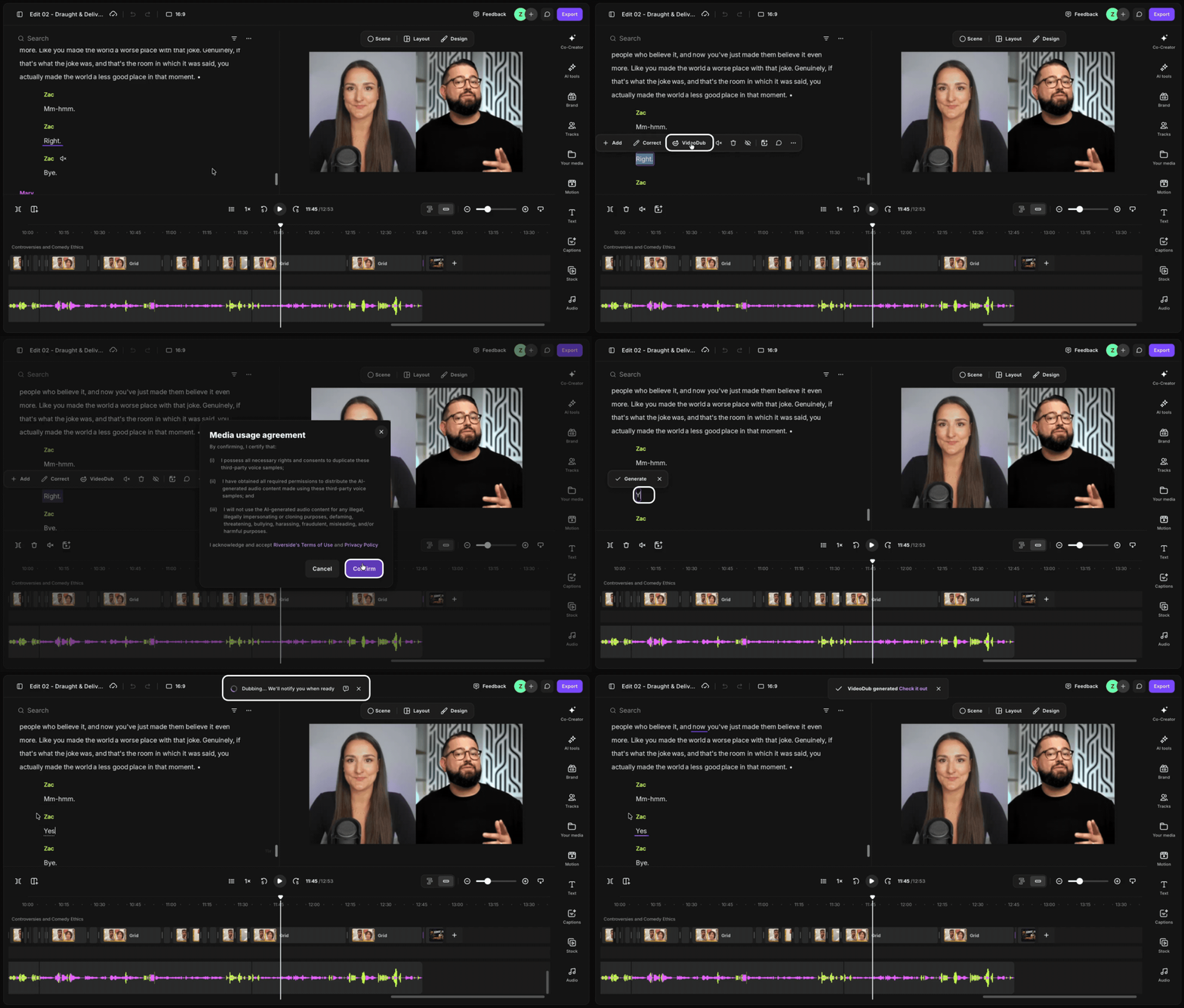
Step by step
- Log in to your Riverside account.
- Open a recording in the editor.
- In the transcript, double-click the word you want to correct.
- Click
VideoDub.
To apply VideoDub to a guest track, you must accept a legal disclaimer acknowledging that you have permission to do so. - Type in the replacement text.
- Click Generate.
VideoDub generation may take a few moments, but you can continue editing while you wait. - To revert a VideoDub correction, double-click the dubbed word in the transcript, then click
Revert.
 Good to know
- VideoDub cannot be applied during the first 3 seconds of a recording.
- You can apply VideoDub to up to two words at a time. If two words are selected, they will be replaced with a single dubbed word. However, you cannot replace a single word with two separate words.
- Full sentence dubbing isn’t supported at this time.
- Results may vary. AI accuracy depends on factors like pronunciation, lighting, and speaker positioning. For best results, keep your face clearly visible and avoid covering your mouth with your hands, a microphone, or other objects.