« To Riverside editor: Overview
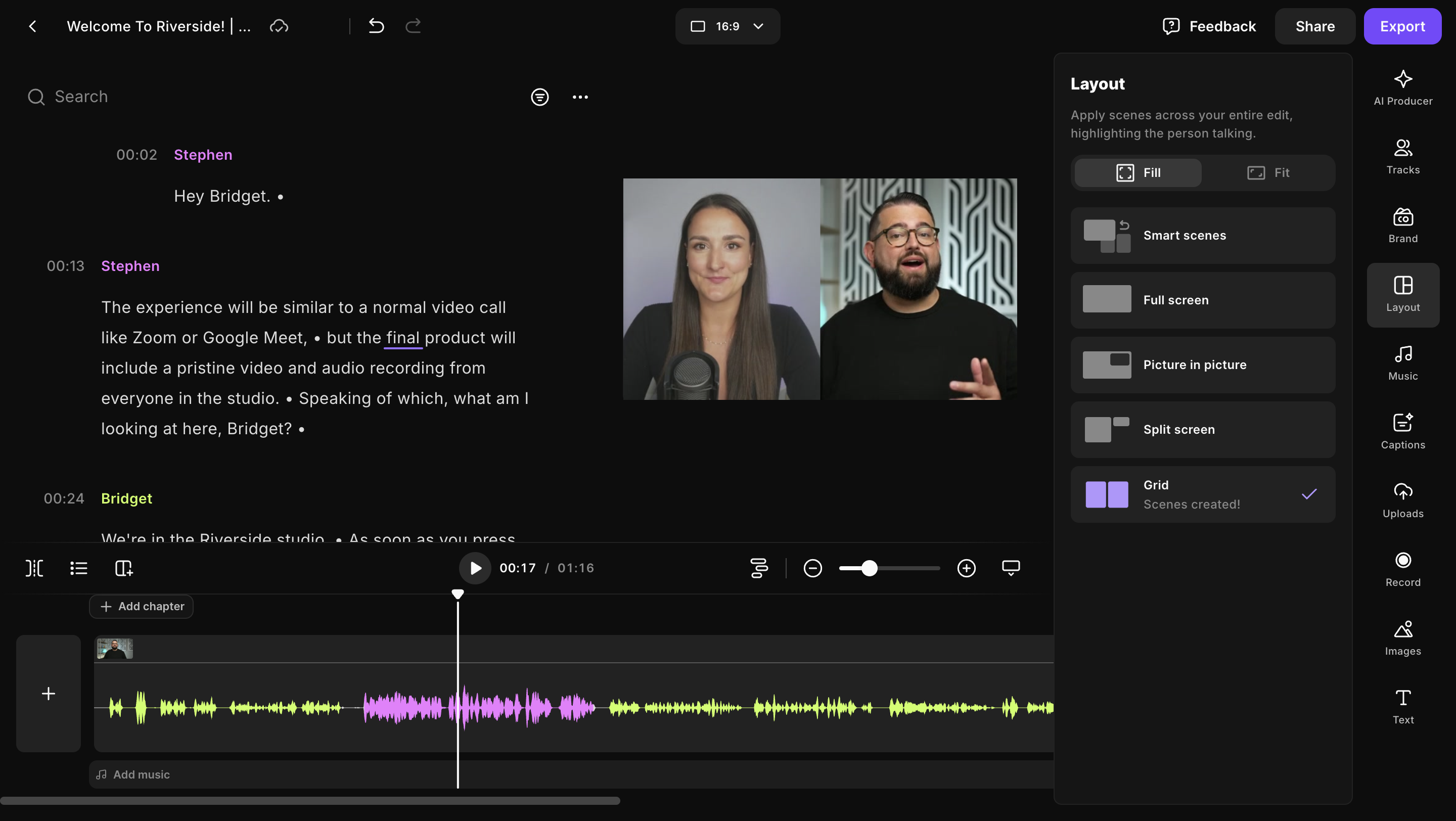
Use the editor tools below to customize your edit before exporting and sharing it. These options let you change the layout of the video tracks to position and prioritize your participants in the main part of your clip. Some formatting tools apply to individual scenes, while others affect the entire recording.
Scenes are automatically generated for screen shares, Media Board videos, and shared presentations, ensuring they are displayed as the primary video for easier viewing.
 Get started
- Apply smart layouts to your video
- Add a scene to change the video layout in the editor
- Use only a track's audio
- Change a video clip's overall aspect ratio (size)
- Apply layout to recording
- Arrange participants' video tracks
- Display a single track in the editor
- Hide (remove) an individual video track in the editor
- Fit or fill video tracks frame in the editor
- Add gaps and rounded corners between video frames
- Center, crop, or zoom in and out on a speaker in the video frame
- Mirror a video track tile in the editor (Applied to entire recording)
- Fix gaze for natural eye contact
-
Adjust colors in the editor