Riverside automatically extracts the most valuable 3–10 minute moments from a full recording and creates Magic Segments, which are medium-length clips that stand on their own and are ideal for repurposing on platforms like YouTube or LinkedIn.
Plan: All plans
Device: Computer browser and Mac app
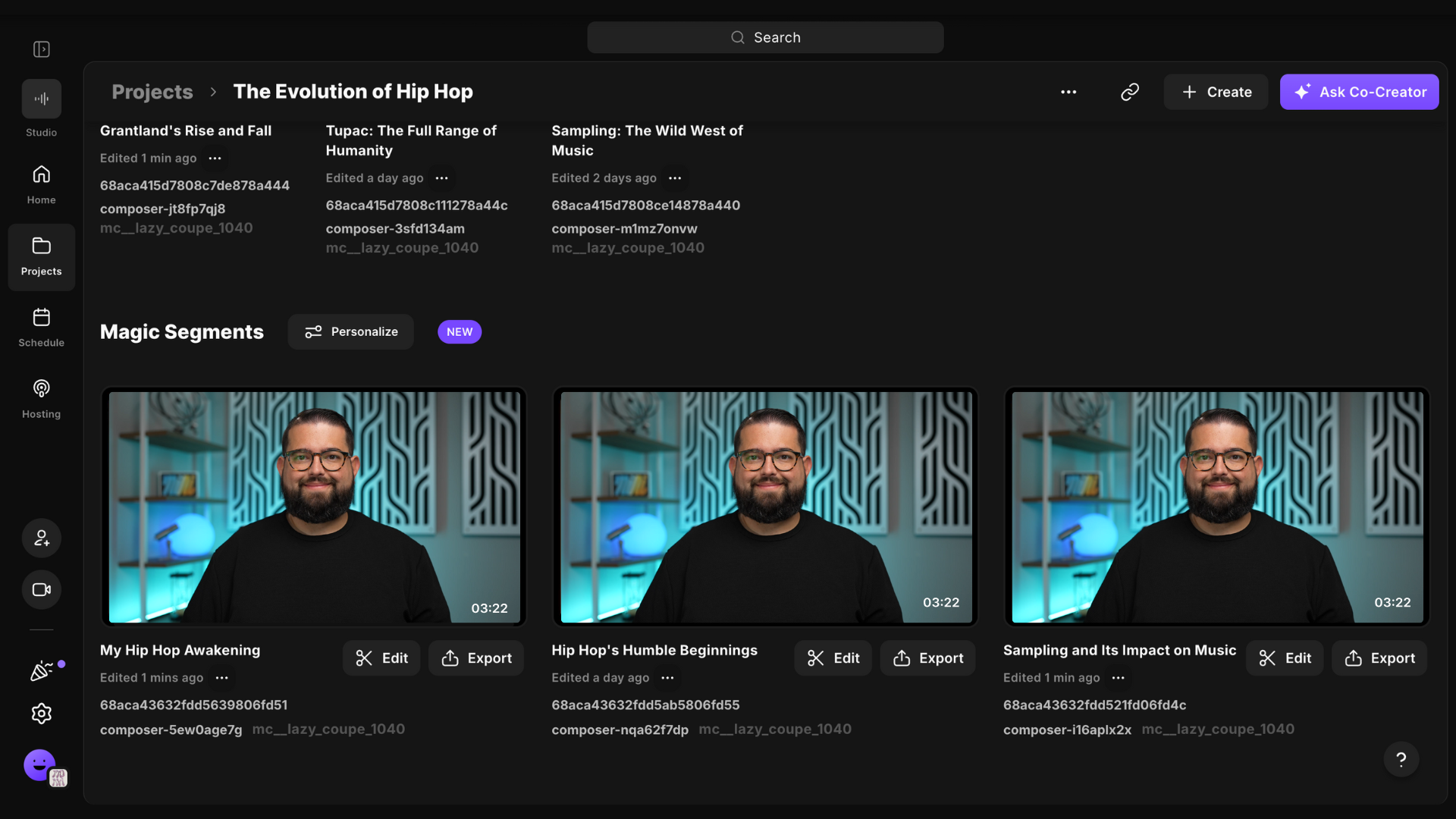 Access a recording's Magic Segments
- Log in to your Riverside account.
- Navigate to the relevant studio.
- Select the relevant project.
- From the top menu, click Made for You.
- Scroll down to Magic Segments.
- To preview, hover over the video and click the
Play icon.
- To customize your Magic Clip click Edit.
- To export and share, click Export.
- To preview, hover over the video and click the
 Good to know
- If you don't see the recordings you want to be included in your Magic Segment, you can either move a recording or upload an external media file into the current project.
- Magic Segments are automatically created for content longer than 15 minutes.
- Magic Segments are generated for every new recording or upload added to a project.