« To Manage Riverside for Business team: Overview
Each Riverside for Business account has a number of 'seats' that can be assigned to collaborators. Additionally, some self-serve accounts can add an editor.
The account owner and admins who are granted permission to manage other team members can remove people from the account by following the steps below.
Who: Riverside account owner and admins (if given permission)
Device: Computer browser
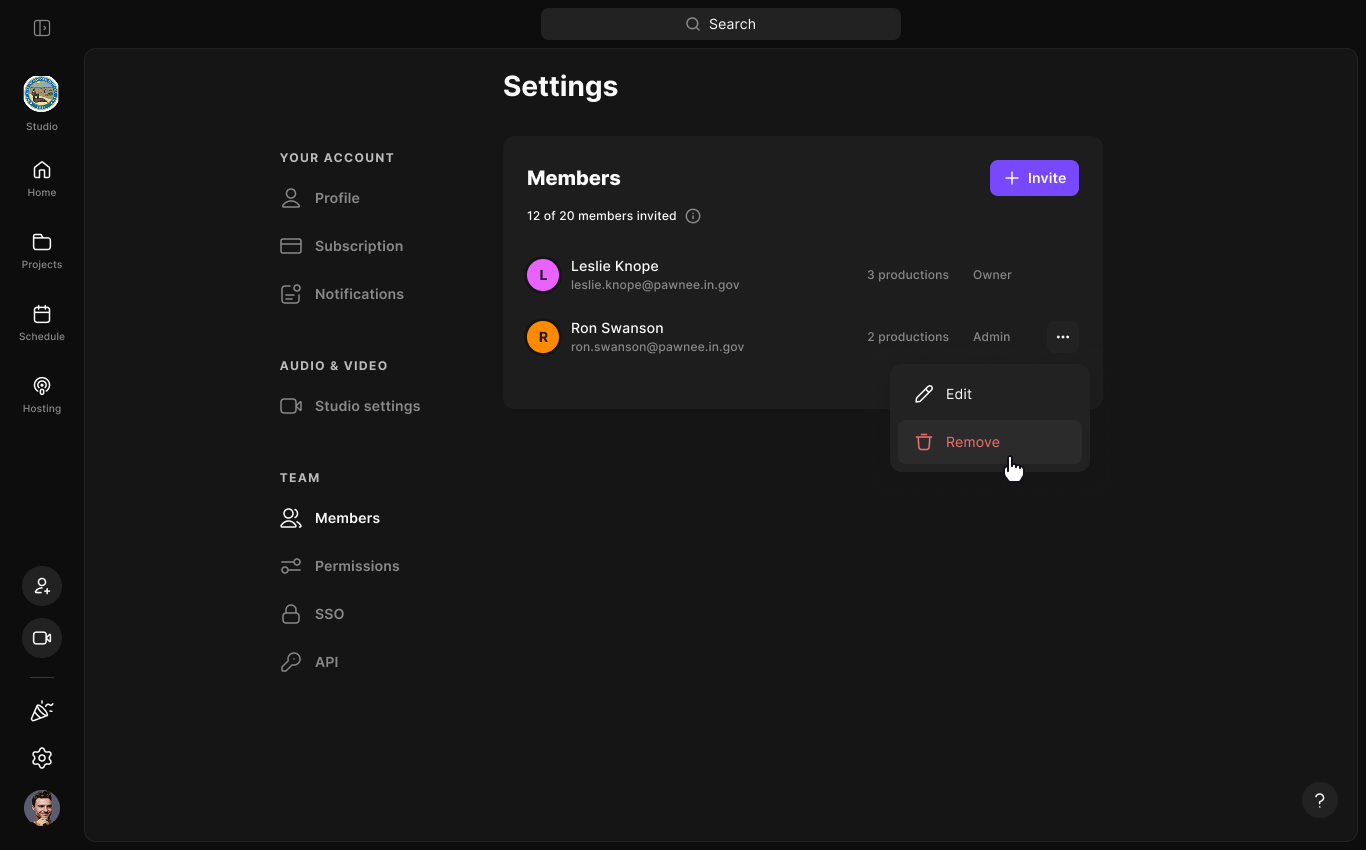 Step by step
Log in to your Riverside account.
- In the bottom left corner, click the account menu button.
- Click
Settings.
- Under Team, click Members.
-
Next to the team member you want ti remove, click
•••the three dots. - Click Remove.
- In the pop-up window, choose what happens to the user’s studios:
- To remove any studios created by this user, check
the box.
- To remove the user but keep their recordings and studios in your account, leave the box unchecked.
- To remove any studios created by this user, check
-
Click Remove member.
 Good to know
- After a team member is removed, they no longer have access to that account’s productions or recordings.
- If the removed team member belongs to other Riverside accounts, they can still access those accounts.
- If the removed team member does not belong to another account, their access to Riverside is removed. They can create a new account for themselves.