Troubleshooting for:
- Recording and uploading track files
- Studio error message: "Browser not allowing to record"
- Problems due to browser extensions
When you create a new browser profile, it is a 'clean slate' to record from and does not have any extensions installed or if you're using a Mac, use the Riverside MacOS Desktop app.
-
Google Chrome
- Using Google Chrome on a computer, click the round profile icon in the upper-right corner.
- At the bottom of the menu, click + Add.
- In the 'Set up your new Chrome profile' window, click Continue without an account.
- Type in a name for the new profile and choose a theme color.
- Click Done.
A new profile is created in your browser. - Open the studio invite link for Riverside in the new browser profile.
- Using Google Chrome on a computer, click the round profile icon in the upper-right corner.
-
Microsoft Edge
- Using Microsoft Edge on a computer, click the round profile icon in the upper-right corner.
- At the bottom of the menu, click
Add Profile.
- Click Add.
- In the new window, click Start without your data.
- Click Confirm and start browsing.
- Click Finish.
A new profile is created in your browser. - Open the studio invite link for Riverside in the new browser profile.
Be sure to use the same browser profile if you need to use the upload page after recording.
- Using Microsoft Edge on a computer, click the round profile icon in the upper-right corner.
-
Safari
- Open Safari.
- From the menu bar at the top, click Safari.
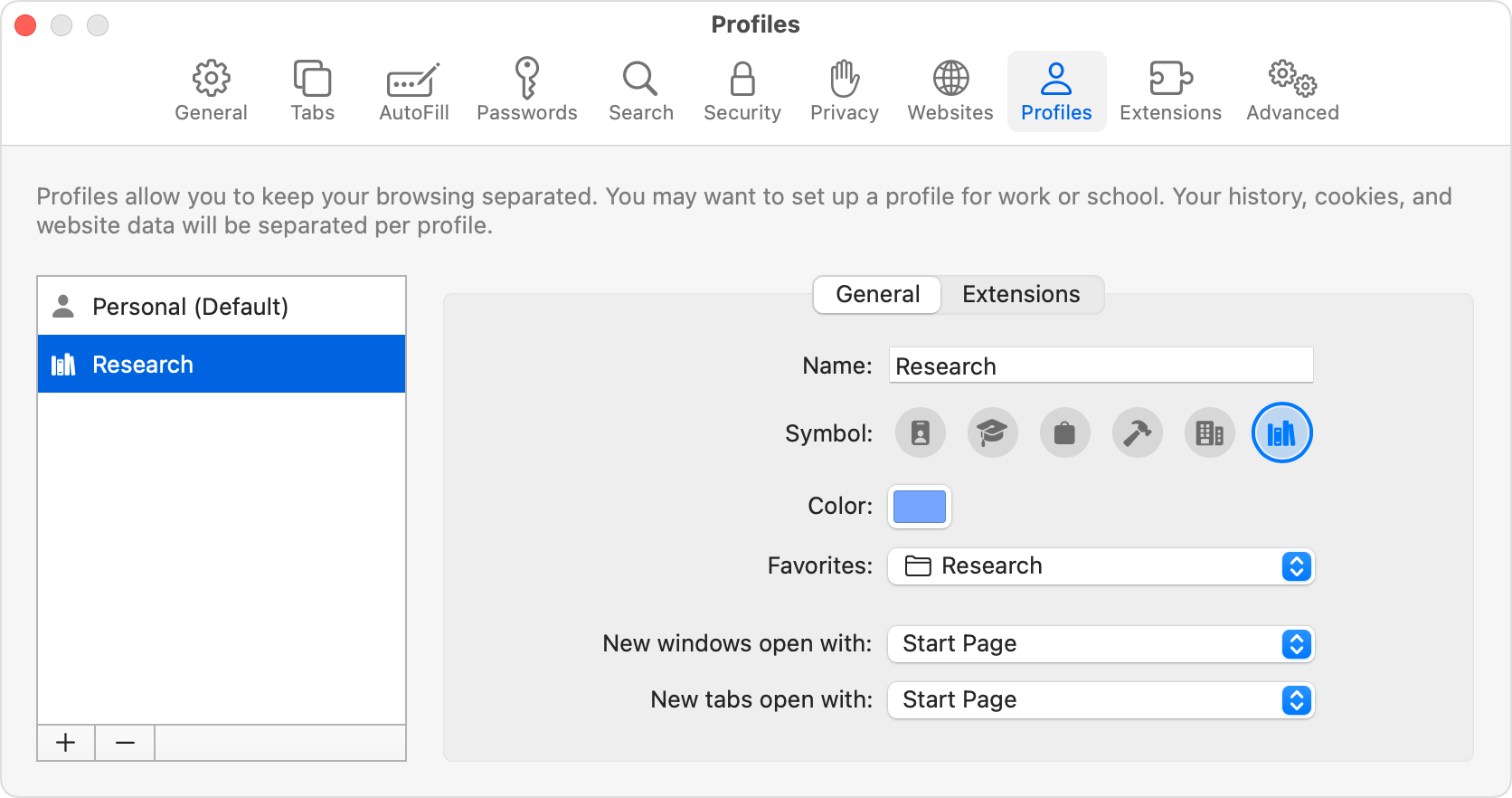
- Click Create Profile.
- Click Start Using Profiles.
- (Optional) Set up your new profile with a name, symbol, color, and favorites.
- Click Create Profile. Safari opens new windows and new tabs to your start page.