« to Riverside editor: Overview
Use background removal and blur effects to create a cleaner look and added privacy, without the need for extra tools or a green screen.
Plan: Pro, Grow, Webinar, and Business
Device: Computer browser and Mac app
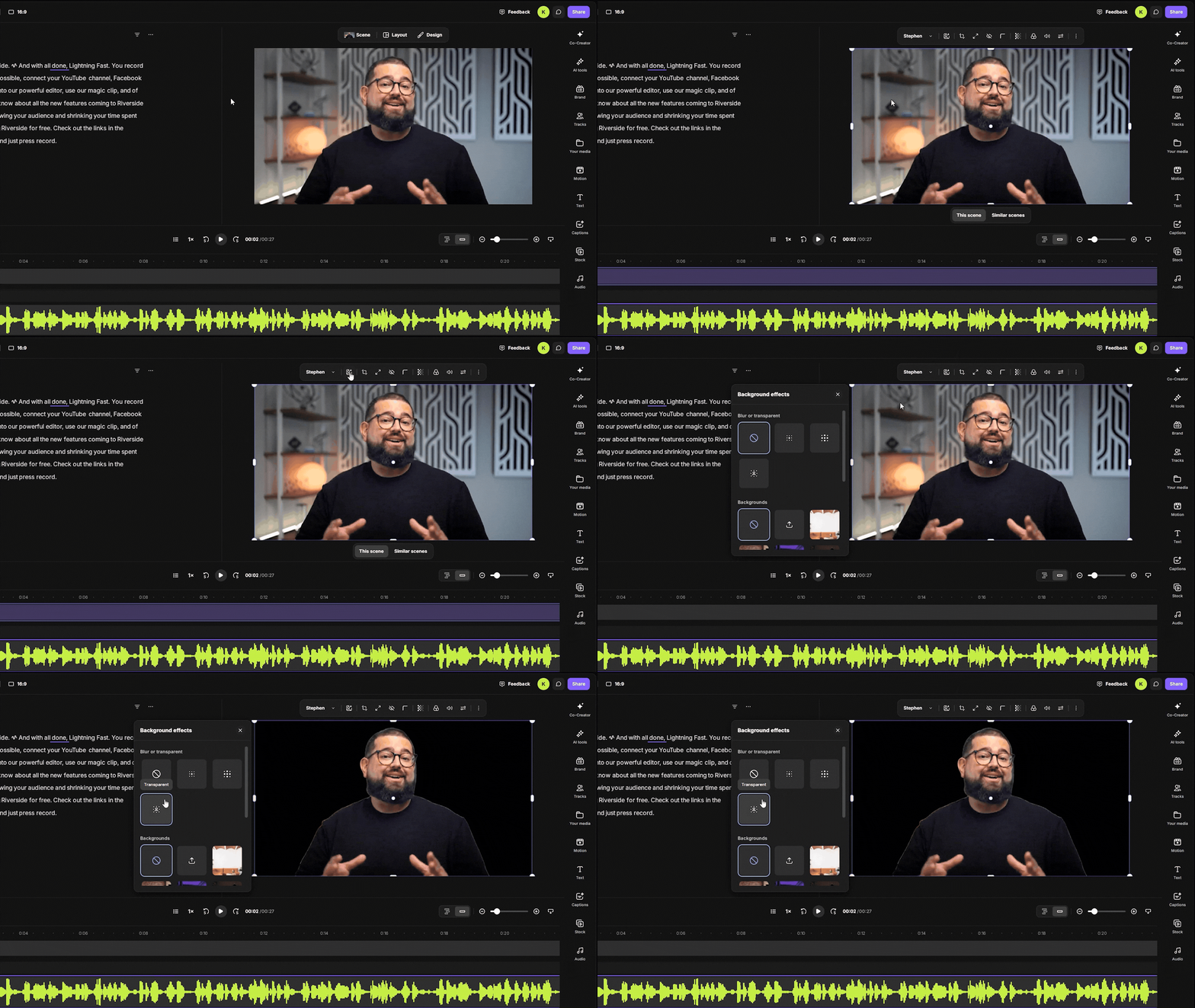 Step by step
- Log in to your Riverside account.
- Open a recording in the editor.
- Click on the speaker's tile in the video canvas.
- Above the speaker's tile, click
the effects icon.
- To make blue the background or make it transparent:
- Click the
Subtle blur icon for a light polish.
- Click the
Full blur icon to apply a strong blur effect to your background.
- Click the
Transparent icon to remove the background completely.
- Click the
- To replace the background:
- On the panel under Backgrounds, choose a background.
- To upload a custom background, click the
plus button.
Choose a PNG or JPG image file from your computer.
- To remove an effect, click the
None icon.
 Good to know
- Background effects are only supported for tracks recorded on Riverside in a web browser and cannot be applied to external uploads.
Learn more