« To Riverside editor: Overview
Who: Account Owner, Admins
Plan: Pro, Grow, or Webinar
Device: Computer Browser
If you're on a Pro, Grow, or Webinar account, a recording session and its files are automatically moved to an archival storage server 2 years after you record.
To access to the session's recordings and edits, follow the steps below to restore them.
 Step by step
- Log in to your Riverside account.
- Navigate to the relevant studio.
- Select the relevant project.
- From the top menu, click Recordings.
- Scroll down to the relevant recording.
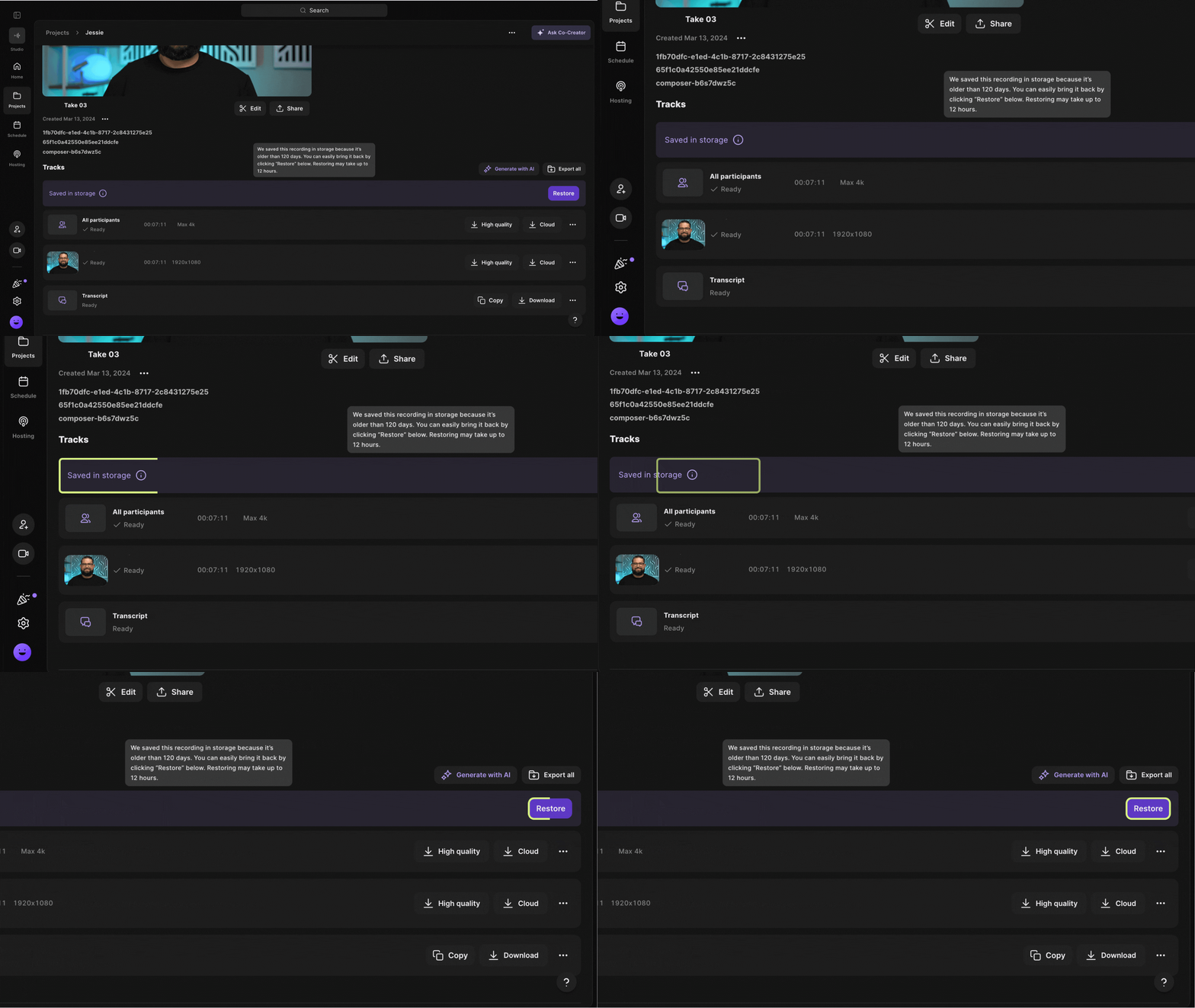
An archived recording is labeled Saved in storage. -
Under Tracks, to the right of Saved in storage, click Restore.
A new label indicates that the restoration is in progress.
- Check your inbox for an email when the process starts and another email confirming that your files are ready.
- In the confirmation email, click View recording to access the restored recording on Riverside.
 Good to know
- It can take up to 24 hours to restore a recording.
- You can restore multiple recordings at the same time.
To prevent recordings from being archived, upgrade to a Riverside for Business account.