From the recordings dashboard, you can easily change the name of a recording to a name that better suits your organizational needs.
Who: Account owners, admins, directors, and editors
Plan: All plans
Device: Computer browser, mobile, and Mac app
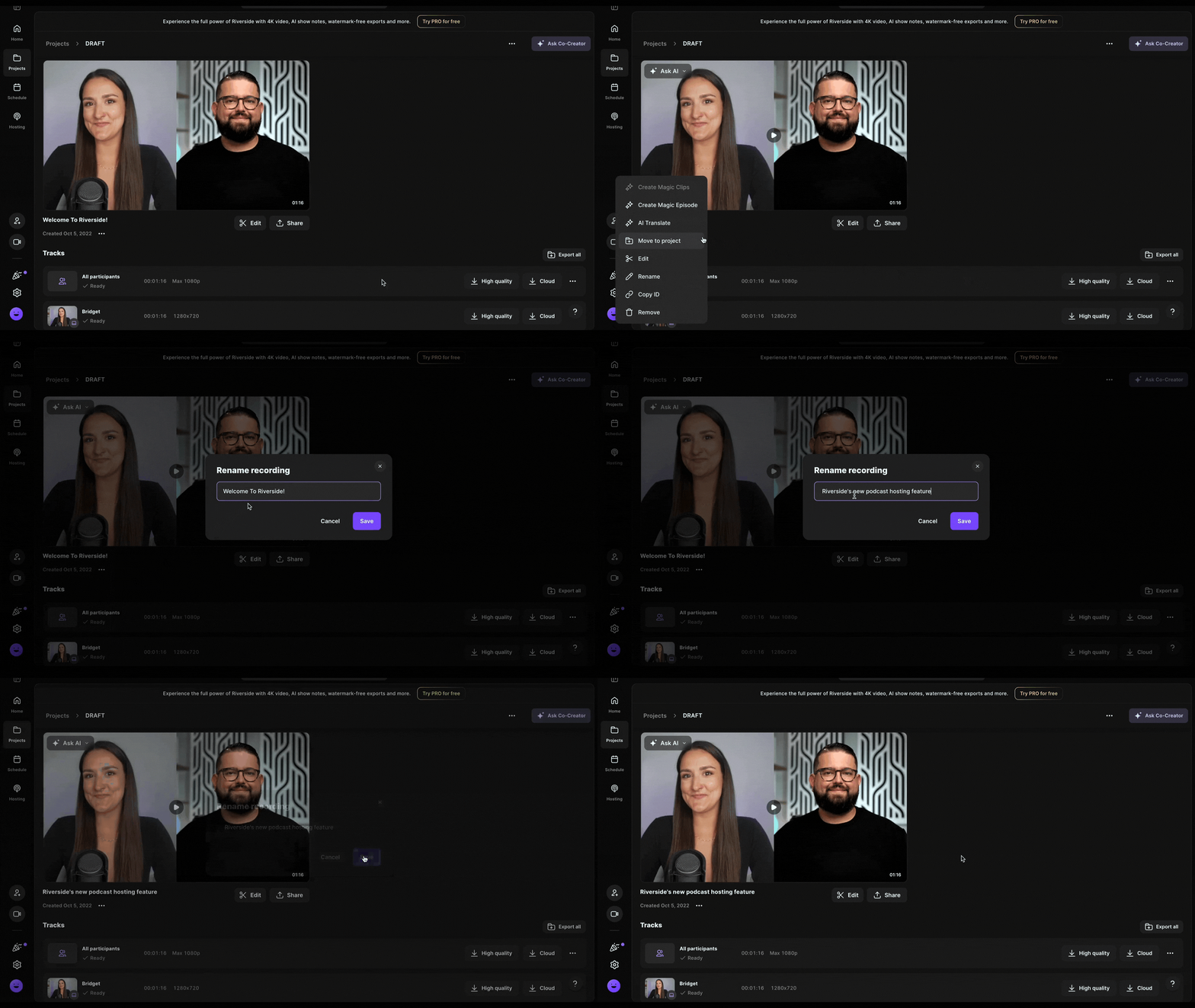 Step by step
-
Using a computer
- Log in to your Riverside account.
- Navigate to the relevant studio.
- Select the relevant project.
- From the top menu, click Recordings.
- Scroll down to the relevant recording.
- Under the recording preview, click the three dots menu […].
- Choose
Rename.
- Type in a new name.
- Click Save.
You can also rename projects and studios
-
Using a phone
- Download and launch the Riverside mobile app.
- At the bottom of the screen, tap the Projects tab.
- Tap the relevant project.
- Press and hold the recording you want to rename to open the quick actions menu.
- Tap Rename
- Type in a new name.
- Tap Done.