« To Manage Riverside for Business team: Overview
At Riverside, we’re building safe and responsible AI integrations into the features you love. We prioritize data security, and carefully integrate AI tools into our product to ensure you have the best experience.
Business users can deactivate AI tools on their accounts by following the steps below.
Who: Account owners
Plan: Business
Device: Computer browser
 Step by step
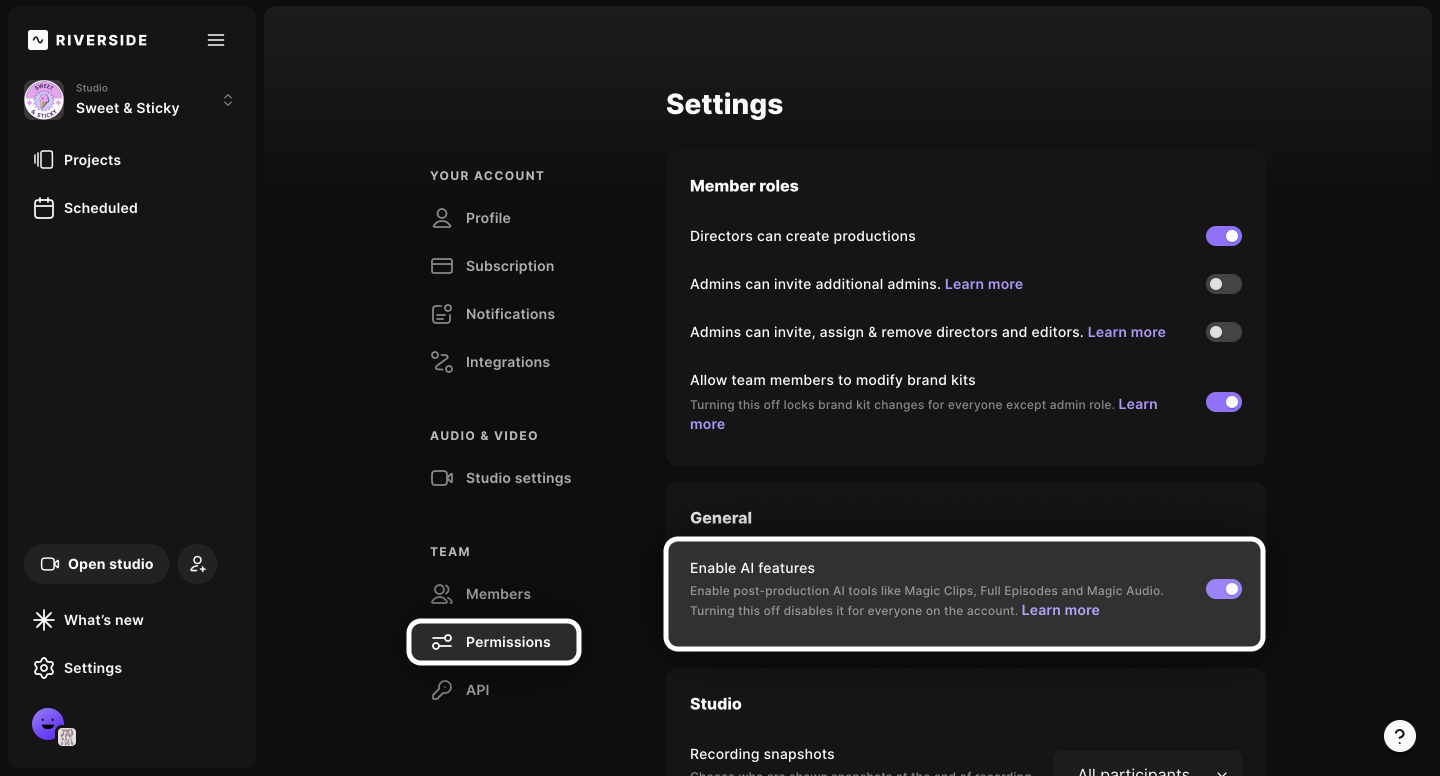
To disable AI tools, follow these steps:
- Log in to your Riverside account.
- In the bottom left corner, click the account menu button.
- Click Settings.
- Under Team, click Permissions.
- Next to Enable AI features click the toggle
to turn it off.
The toggle is grey when the feature is disabled.
All content previously created using AI tools will still be accessible, but no new AI content can be created unless the owner on the account reenables the tools.
AI post-production tools
When AI features are disabled at the account level, team members cannot use the AI features listed below.
These tools appear greyed out with the message This feature was disabled by your team’s account admin.
- AI B-Roll
- AI Q&A Moderator
- AI Translation
- AI voice
- Blog Post & Instagram Captions
- Chapters
- Find Fluff (AI suggestions)
- Fix Eye Contact
- Generate AI b-roll videos
- Generate your AI twin
- Generate your AI voice clone
- Hooks
- Magic Clips
- Magic Segments
- Magic Episodes
- Magic Audio
- Riverside AI Agents
- Show Notes
- VideoDub