Live stream your Riverside recording session to a Facebook group to reach a broader audience. You can also live stream to a Facebook profile or Facebook page, or schedule a live stream for a later time.
Who: Hosts
Plan: Grow, Webinar, and Business
Device: Computer browser
Before you start
To live stream to a Facebook group, you must have:
- A Facebook account that is at least 60 days old.
- Access to go live in the Facebook group.
- At least 100 followers, if it's a professional account.
- See also: Technical specifications for live videos on Facebook
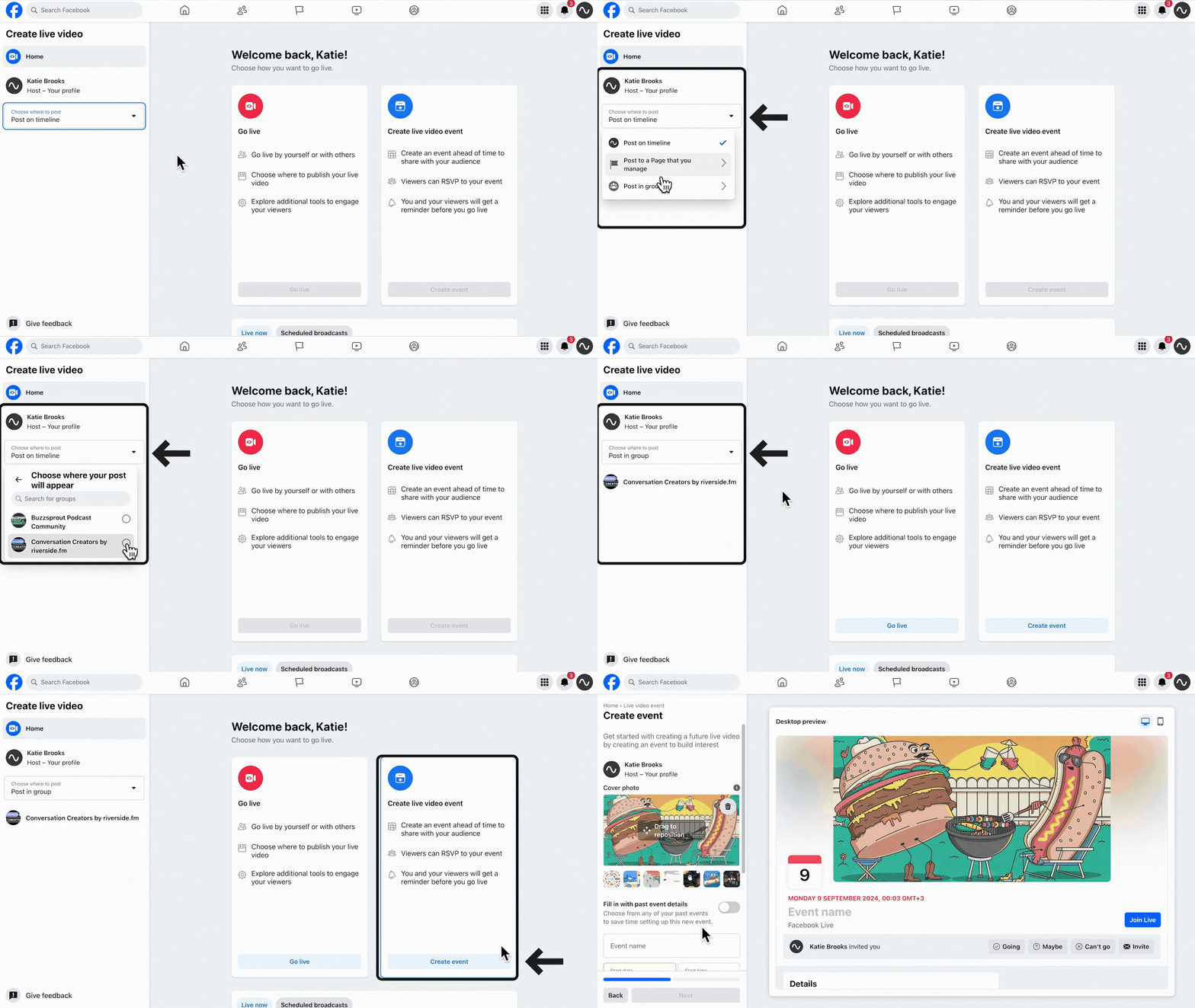 Set up the live stream connection to a Facebook group and go live
- Log in to Facebook.
- Go to the Facebook homepage.
- On your Facebook timeline, under What's on your mind?, click Live video.
- On the next page, under the 'Where to post' panel, click on the dropdown menu and select Post in group.
- In the dropdown, select a Group.
- Under the Create live video event panel, click Create event.
- On the next page, in the left panel, choose a cover photo and enter in the live stream details including: Event name, Date and Time.
- Click Next.
- Click Create Event.
- In the pop-up, click Set Up Live Video.
- On the next page, under Select a Video Source, click Streaming software.
- Click Advanced settings.
- Toggle on Persistent stream key.
- Under to Stream key, click Copy.
- Open the Custom RTMP live stream settings on Riverside.
- On Riverside, in the Stream Key field, paste the Stream Key.
- On Facebook, open the Advanced settings tab
- Under Server URL, click Copy.
- In Riverside, in the Stream URL field, paste the Server URL.
- Click Add in Riverside.
- Next to your Facebook group destination, make sure the toggle
is on.
- Add a title for the stream.
- At the bottom of your Riverside studio, click Go live.
- Click Start recording to start the live stream.
- On the bottom-left corner of the Facebook live stream page, click Go Live to start the live stream feed.
It can take around 20 seconds for the video to appear on Facebook.
 Good to know
- The connection appears in the list of all of your connected destination platforms inside your studio. Make sure the toggle is in the on position